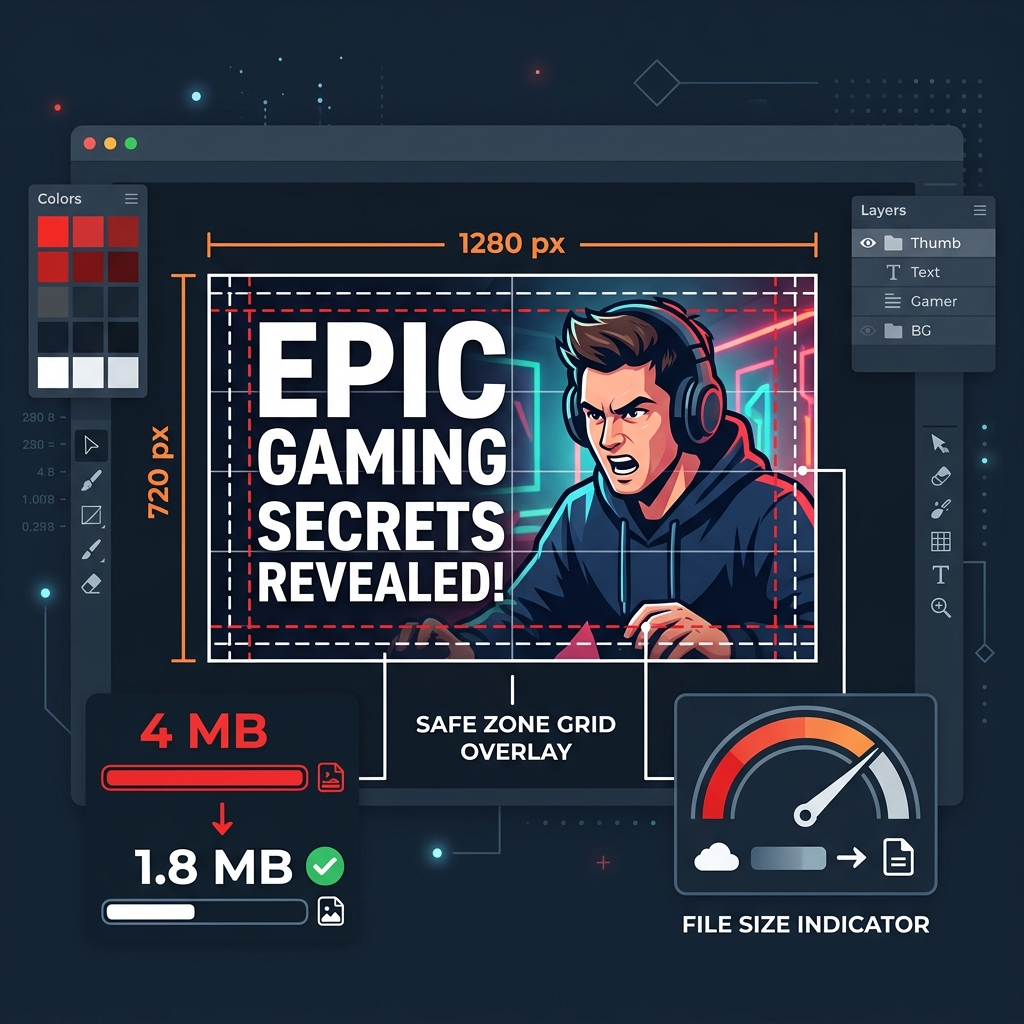
Compressing AI-Generated Images: How to Handle Bloated Midjourney and DALL-E Exports
AI image generators are revolutionizing visual design, but their exports are a web performance nightmare. A standard Midjourney or DALL-E PNG can easily run 5MB to 15MB. Here is how to compress them for the web without losing the details.
Prayag
Lead Architect
July 1, 2026
Published
5 min
Read time
Topics
Table of Contents
Compressing AI-Generated Images: How to Handle Bloated Midjourney and DALL-E Exports
AI-generated art is everywhere. It’s on landing pages, blog headers, product mockups, and social graphics.
But behind those stunning visuals is a massive web performance disaster.
If you’ve ever run a Midjourney /imagine command or prompted DALL-E 3 to create a clean corporate illustration, you know the outputs look incredible. What you might not know is that the raw file you download is frequently a 5MB to 15MB PNG.
Dropping that file directly onto your website is the speed equivalent of driving with the parking brake on.
Why are AI images so bloated? And how do you make them web-ready without losing the delicate textures and patterns that make AI art look so good? Let's take a look.
Why AI Art Exports are Obesely Large
If you generate a 1024x1024 pixel image in Midjourney or DALL-E 3, it should logically be relatively small—under 1MB. So why are the files so huge?
There are two primary culprits:
- Maximum Metadata & Lossless Settings: Most AI generators default to exporting as completely uncompressed, lossless PNGs. They do this to ensure that you get the absolute highest quality master copy. However, PNG is an inefficient codec for complex illustrations or photographic styles.
- Noise and High Frequency Detail: AI generators are exceptionally good at creating fine details—grain, complex noise, lighting gradients, and highly textured surfaces. Traditional compression algorithms look at noise and see "information." They struggle to compress it because they can't easily find patterns to simplify. Consequently, the encoder has to dedicate a massive number of bytes to preserve every single speck of grain.
Takeaway #1: AI image generators optimize for master-level editing quality, not web delivery. Expect raw downloads to be 10x larger than necessary.
The AI Art Optimization Workflow
If you're using AI-generated images on a website, don't just drag the raw download into your CMS. Run through this simple optimization pipeline:
Step 1: Decide on your visual style format
AI art isn't just one style. The format you choose should match the visual output:
- Photorealistic / Complex 3D renders: Convert to AVIF. AVIF handles complex textures and lighting gradients beautifully, often yielding 70-80% savings over the raw PNG without any noticeable degradation.
- Flat illustrations / Vector-like art / Line drawings: Convert to WebP or highly compressed PNG. If the image has a transparent background, PNG-8 or compressed PNG-24 is essential, but if it has a solid background, WebP will be significantly smaller.
Step 2: Resize the output
DALL-E 3 exports at 1024x1024 pixels (or up to 1792x1024 for wide layouts). Midjourney can export at higher scales.
If this image is going to be a small feature card on your website (say, 300px wide), do not upload the full 1024px version. Use a local tool to scale it down to exactly twice the display size (600px for Retina display safety) before doing anything else.
Step 3: Apply lossy compression
Don't be afraid of "lossy" compression for AI art.
Let's test this. Here's a comparison of a photorealistic fantasy landscape generated via Midjourney v6:
| File State | Format | File Size | Load Time (Slow 3G) | Visual Difference |
|---|---|---|---|---|
| Raw Download | PNG | 6.2 MB | ~15 seconds | Baseline |
| Optimized Fallback | WebP (q75) | 480 KB | ~1.2 seconds | Indistinguishable |
| Modern Web | AVIF (q70) | 215 KB | ~0.5 seconds | Indistinguishable |
You read that right. By converting to AVIF and applying moderate compression, we reduced the file size by 96.5%.
On a standard webpage, that single change saves over 5 megabytes of data per visitor.
Takeaway #2: Photographic and detailed AI art should always be converted to AVIF. The compression algorithms are uniquely suited to handle AI texture noise without introducing muddy artifacts.
A Tool Tip for Creators
If you're dealing with sensitive client work or proprietary AI assets, you probably don't want to upload your generated designs to cloud-based compression websites where they might be stored or used to train other models.
Instead, use a browser-based client-side compressor like TinyImage. Because the processing happens locally on your computer via WebAssembly, your AI designs never leave your browser, keeping your workflow 100% private.
AI Art Pre-Publish Checklist
Before you add that next generated image to your site, make sure you've done this:
- Resized the image to match its final display container width
- Converted photographic AI styles to AVIF (quality 70)
- Converted flat vector/illustration styles to WebP (quality 75)
- Stripped unnecessary metadata (EXIF headers generated by the upscale tools)
- Verified that text in the image (if any) remains sharp at compressed resolutions
Deploy Visual Excellence
Put what you've learned into practice with TinyImage.Online - the free, privacy-focused image compression tool that works entirely in your browser.
Boost Page Performance Beyond Images
Optimizing image assets is crucial, but speed starts at the server level. Swap to Hostinger for blazing-fast NVMe cloud server configurations that instantly decrease TTFB delays and elevate Core Web Vitals.
Master Web Performance & Core Web Vitals
Sign up to receive our weekly deep dives into speed optimization, Next.js setups, and SEO engineering secrets.