The Perfect YouTube Thumbnail: Dimensions, Safe Zones, and Compression Guide
YouTube limits thumbnail uploads to 2MB. Here is how to resize, verify safe zones, and compress your thumbnails to keep them under the limit without losing quality.
Golu
Lead Architect
June 24, 2026
Published
4 min
Read time
Topics
Table of Contents
The Perfect YouTube Thumbnail: Dimensions, Safe Zones, and Compression Guide
If you've spent hours editing a high-fidelity thumbnail for your next video, only to be hit with the dreaded "File is bigger than 2MB" upload error on the YouTube Creator Studio, you are not alone.
YouTube enforces a strict 2MB size ceiling for all custom video thumbnails. Raw graphic exports from Photoshop, Illustrator, or Canva frequently exceed this limit when saved as high-quality PNGs or JPEGs.
In this guide, we cover the exact dimensions, visual safe zones, and local compression techniques you need to keep your thumbnails sharp, compliant, and optimized for click-through rate (CTR).
The Core Technical Specifications
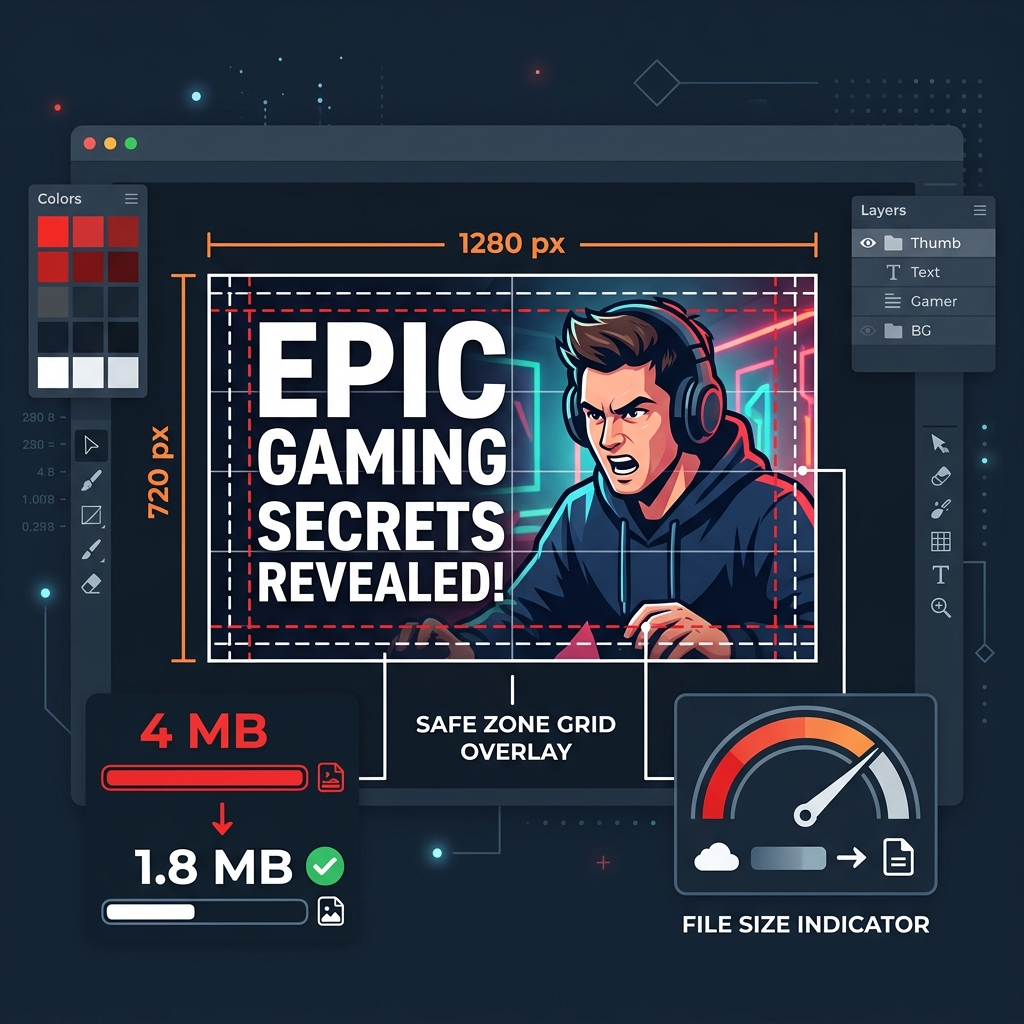
To ensure your thumbnail renders correctly on desktop feeds, mobile apps, TV streams, and embeds, match these exact specifications:
| Metric | Target Specification |
|---|---|
| Recommended Resolution | 1280 × 720 pixels (720p HD) |
| Minimum Width | 640 pixels |
| Aspect Ratio | 16:9 widescreen standard |
| File Formats | JPEG, PNG, GIF, or WebP |
| Maximum File Size | Under 2.0 MB |
Why 1280×720 instead of 1080p?
A common mistake is exporting thumbnails at 1920×1080 (1080p). While this seems logical for high-resolution displays, YouTube downscales all thumbnails to 1280×720 in the browser player grid anyway. Exporting at 1080p just balloons your file size, pushing it past the 2MB threshold without adding extra visual detail.
Designing for the Visual Safe Zone
Many creators place key text, faces, or branding in the bottom-right corner of their thumbnails, only to realize that YouTube overlays the video duration badge (e.g., 14:22) on top of it.
Avoid the Bottom-Right Corner
The duration badge expands depending on the length of the video (especially if it is a livestream or hour-long podcast). Keep any text, brand logos, or visual details out of the bottom-right 20% area of your graphic.
Safe Zone Layout Principles:
- Focus Subject Left or Centered: Place faces, expressions, and key graphics on the left or center of the canvas.
- Text Alignment: Keep headlines or copy aligned to the left or top edges. Use heavy, high-contrast, stroke-outlined fonts.
- Contrast borders: YouTube's interface is white in light mode and dark gray in dark mode. Adding a subtle outer border or high-contrast background drop shadow ensures your thumbnail doesn't wash out into the feed.
How to Compress YouTube Thumbnails Under 2MB
To compress your thumbnails without uploading sensitive files to external servers or installing heavy desktop programs:
Use the TinyImage Social Resizer to prepare your thumbnail in seconds:
- Drag and drop your high-resolution thumbnail graphic into the dropzone.
- Set the Focal Crosshair over the main subject (like a face or primary text headline).
- The YouTube Thumbnail preset is active by default. It simulates the actual duration badge placement, showing you exactly how the thumbnail will look live!
- Click Synthesize to run client-side WASM compression.
- Download your compressed JPG/WebP thumbnail, optimized to ~150KB—well under the 2MB limit while retaining perfect clarity.
WebP vs. JPEG for YouTube Thumbnails
YouTube supports WebP thumbnails, which are smaller than JPEGs at similar quality settings. If you are struggling with a heavy visual background (lots of color gradients or complex textures), exporting to WebP at 85% quality can save up to 40% more space compared to JPEG.
However, standard JPEG remains the most compatible format if you plan to share your video links on other legacy platforms (like email newsletters or older forums that pull embeds).
Our recommendation: Use JPEG at 85% quality for general distribution, and switch to WebP for highly graphic/complex thumbnail designs. Both are processed instantly and locally using TinyImage.
Deploy Visual Excellence
Put what you've learned into practice with TinyImage.Online - the free, privacy-focused image compression tool that works entirely in your browser.
Boost Page Performance Beyond Images
Optimizing image assets is crucial, but speed starts at the server level. Swap to Hostinger for blazing-fast NVMe cloud server configurations that instantly decrease TTFB delays and elevate Core Web Vitals.
Master Web Performance & Core Web Vitals
Sign up to receive our weekly deep dives into speed optimization, Next.js setups, and SEO engineering secrets.