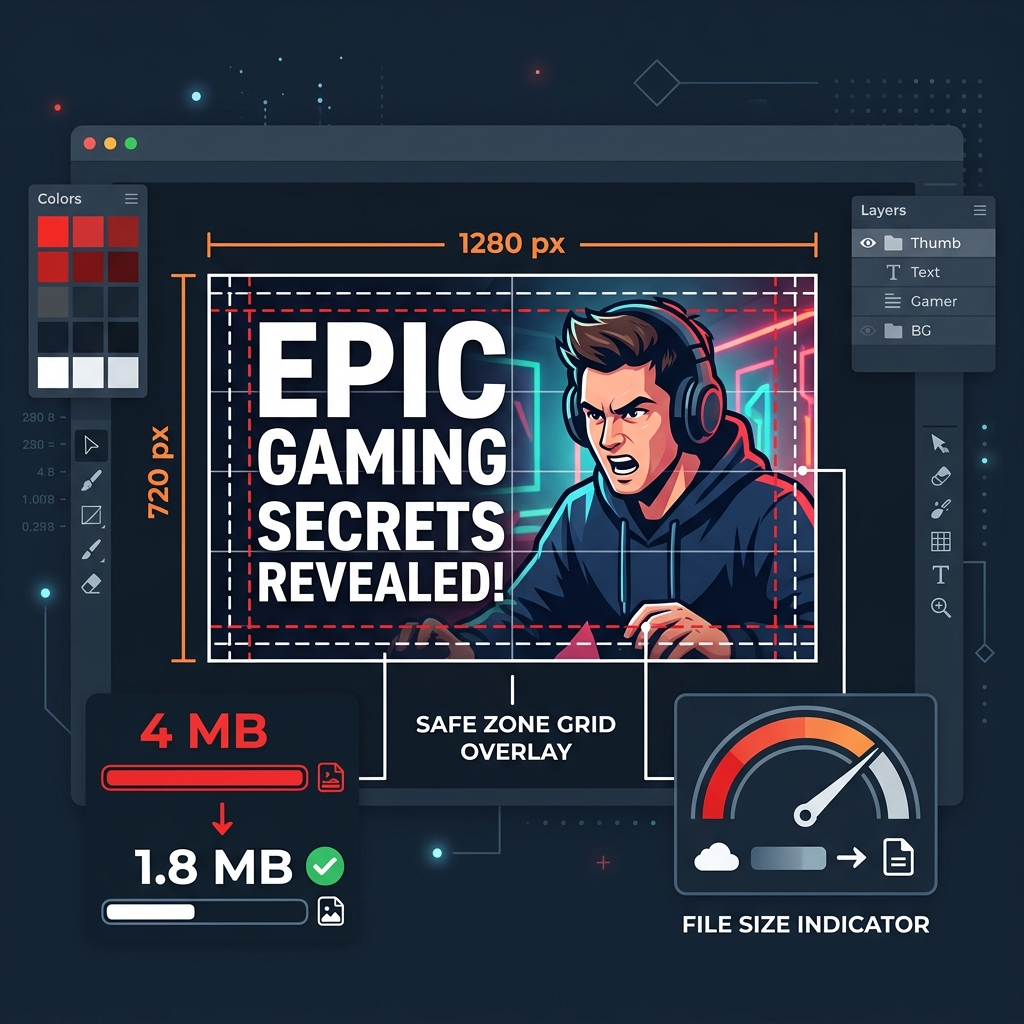
OG Image Optimization: Why Your Social Share Cards Are Killing Your Click-Through Rate
Your Open Graph image is the first thing people see when your content is shared. Here's how to engineer OG images that stop the scroll, load fast for social crawlers, and drive measurably higher CTR.
Priyank
Lead Architect
April 22, 2026
Published
7 min
Read time
Topics
Table of Contents
OG Image Optimization: Why Your Social Share Cards Are Killing Your Click-Through Rate
Here's a situation that should make any growth-focused team uncomfortable: you publish a piece of content you've put real effort into, someone shares it on LinkedIn, and the preview card that appears shows a blurry or incorrectly cropped image, a white background with your favicon, or—frequently—a completely wrong image pulled from some unrelated element on the page.
Every one of those outcomes is preventable. Open Graph image errors are entirely technical problems with entirely technical solutions.
What Actually Happens When You Share a Link
When someone pastes a URL into LinkedIn, X, Threads, or Slack, the platform sends a GET request to your URL from its own crawler. That crawler reads the <meta> tags in your <head>:
<meta property="og:image" content="https://yoursite.com/og/blog-post.jpg" />
<meta property="og:image:width" content="1200" />
<meta property="og:image:height" content="630" />
The crawler fetches that image URL, caches it (often for days), and uses it for the preview card. Several things can go wrong here:
The crawler can't access the URL. If your site is behind auth, the image URL requires cookies, or you've rate-limited bots, the crawler returns a generic placeholder.
The image is too large. Social platforms have file size limits. LinkedIn's crawler will timeout on images over 5MB. X (Twitter) recommends under 1MB. When the image arrives too slowly or is rejected, the card shows a generic placeholder.
The image dimensions are wrong. Each platform has a preferred aspect ratio. An image sized wrong gets cropped—sometimes removing the most important content.
No og:image tag exists at all. The crawler picks the first image it finds on the page—often your logo, an icon, or a decorative element with no relationship to the content.
The Canonical Specifications for 2026
Despite minor platform variations, one size works reliably everywhere:
| Spec | Value |
|---|---|
| Dimensions | 1200 × 630 pixels |
| Aspect ratio | 1.91:1 |
| File format | JPEG (highest compatibility) or WebP |
| File size | Under 300KB |
| Safe zone | Keep critical content within the center 80% |
The "safe zone" matters because some platforms render cards as slightly cropped thumbnails in certain UI contexts (lists, suggested content, mobile cards). Anything important—your headline, your brand name—should be inside the safe zone.
Why File Size Matters More Than You Think
Most developers optimize their blog post images and forget the OG image entirely. A 2MB raw PNG as your OG image means:
- LinkedIn's crawler may timeout and cache a broken card state.
- Every person who sees the link in their feed causes that image to load in their browser—2MB at a time.
- If you have 1,000 social shares of a post, that's 2GB of image data served to social preview renderers, many of whom never click through.
The correct target: under 300KB for a 1200×630 JPG at 85% quality. For context, a high-quality JPEG at those dimensions, properly compressed, should land between 80–180KB. If yours is larger, there's compression work to do.
Crop and compress your OG images in one-click—TinyImage processes them locally in your browser without any server uploads.
The Dead-Simple Implementation
The complete OG image meta block looks like this:
<head>
  <!-- Open Graph (Facebook, LinkedIn, Threads, iMessage) -->
  <meta property="og:image" content="https://yoursite.com/og/page-name.jpg" />
  <meta property="og:image:width" content="1200" />
  <meta property="og:image:height" content="630" />
  <meta property="og:image:alt" content="Descriptive alt text for the image" />
  <meta property="og:image:type" content="image/jpeg" />

  <!-- Twitter/X Card (separate spec, set both) -->
  <meta name="twitter:card" content="summary_large_image" />
  <meta name="twitter:image" content="https://yoursite.com/og/page-name.jpg" />
  <meta name="twitter:image:alt" content="Descriptive alt text" />
</head>
The width and height properties help some crawlers pre-allocate space for the card without having to fetch and measure the image first.
Dynamic OG Image Generation (The Right Approach for Content Sites)
Static OG images work fine for homepages, product pages, and evergreen content. For blogs, articles, and any content that changes frequently, static images are a maintenance burden—you need a unique 1200×630 image for every post.
The modern solution: generate OG images dynamically at request time.
In Next.js, the App Router includes an opengraph-image route convention. You can create an opengraph-image.tsx file in any route segment and export a React component that renders as the OG image using Satori:
// app/blog/[slug]/opengraph-image.tsx
import { ImageResponse } from 'next/og';

export default async function OGImage({ params }) {
  const post = await getPost(params.slug);

  return new ImageResponse(
    (
      <div
        style={{
          display: 'flex',
          flexDirection: 'column',
          justifyContent: 'flex-end',
          width: '100%',
          height: '100%',
          padding: '60px',
          background: 'linear-gradient(135deg, #0f172a 0%, #1e293b 100%)',
        }}
      >
        <p style={{ color: '#10b981', fontSize: 20, marginBottom: 16 }}>
          {post.category}
        </p>
        <h1 style={{ color: 'white', fontSize: 64, lineHeight: 1.1 }}>
          {post.title}
        </h1>
      </div>
    ),
    { width: 1200, height: 630 }
  );
}
This generates a unique, on-brand OG image for every blog post without any manual asset creation. The image is cached at the edge and served by Vercel's CDN.
For non-Next.js stacks, the same approach works with standalone Satori plus a serverless function.
Common OG Image Problems and Their Fixes
Problem: Card shows an old image even after I updated it.
Fix: Social platforms cache OG images aggressively—sometimes for multiple days. To force a cache refresh on LinkedIn, use the LinkedIn Post Inspector. Twitter requires posting a new URL (they don't have a manual cache invalidation tool). Include a cache-busting parameter in your og:image URL when you make significant updates: og/hero.jpg?v=2.
Problem: My OG image looks great in testing but renders as a gray placeholder on some platforms.
Fix: Test with the actual platform tools, not just third-party validators: Facebook Sharing Debugger, LinkedIn Post Inspector, and Twitter Card Validator. Each platform has distinct rendering quirks.
Problem: The wrong image appears when someone shares certain pages.
Fix: Your page has multiple images and no og:image tag. The crawler is picking one arbitrarily. Add an explicit og:image meta tag to every page, pointing to the correct image. This can be set globally in a layout component with a page-level override pattern.
Design Principles That Drive Higher CTR
Technical correctness gets your card showing. Design is what gets it clicked.
High contrast against dark backgrounds. Most social media interfaces now default to dark mode for a substantial portion of users. An OG image with a white background and light gray text will be nearly invisible. Use bold brand colors or deep backgrounds with light text.
One clear, large headline. You have approximately 0.3 seconds in a social scroll before a viewer decides to keep scrolling. Three paragraphs of text on an OG image fails that test. One headline, large font, high contrast.
Brand anchor. Your logo or site name should be visible but small—lower-left or lower-right. The headline carries the real message; the brand mark confirms that the content is from you and worth trusting.
Your OG image is the thumbnail for your content on every social platform. Treat it with the same intentionality you'd apply to a thumbnail on YouTube or a cover on a book. Get the dimensions right, hit the file size target, and make something worth pausing for.
Deploy Visual Excellence
Put what you've learned into practice with TinyImage.Online - the free, privacy-focused image compression tool that works entirely in your browser.
Boost Page Performance Beyond Images
Optimizing image assets is crucial, but speed starts at the server level. Swap to Hostinger for blazing-fast NVMe cloud server configurations that instantly decrease TTFB delays and elevate Core Web Vitals.
Master Web Performance & Core Web Vitals
Sign up to receive our weekly deep dives into speed optimization, Next.js setups, and SEO engineering secrets.